
Quick Tips
Content: faq_en.txt
In this section you will find useful QUICK TIPS,
security recommendations
and proven best practices
for the daily use of
PLUS23.CYBER.SECURITY.
The content is based on typical security events,
administrator experience
and common support requests from real online environments.
Tips & Tricks - Quick Access
WORDPRESS DEBUGGING
For better troubleshooting and traceability, it is recommended to specifically enable the WordPress debug functions.
define( 'WP_DEBUG', true );
define( 'WP_DEBUG_LOG', true );
This automatically creates a debug.log file inside the wp-content directory, where technical error messages and plugin issues are logged.
NOTICE: Active debug output should only be used for analysis or testing purposes.
WORDPRESS PLUGINS
Regularly check whether all installed plugins are actually required. Outdated or unnecessary extensions can cause security risks, malfunctions or performance problems.
Fewer plugins often mean:
UPDATES & MAINTENANCE
Always keep WordPress, themes and plugins up to date. Security updates close known vulnerabilities and improve the stability of your online systems.
During larger WordPress, theme or plugin updates, it is recommended to temporarily disable the advanced protection mechanisms of PLUS23.CYBER.SECURITY.
Modern content management systems such as WordPress partially execute automated processes, file operations and background requests during updates, administration tasks or plugin installations, which may resemble suspicious behavior from a security perspective.
Temporarily disabling protection during maintenance work helps avoid unnecessary blocks, error messages or conflicts with automated security rules.
After maintenance or update work is completed, protection should be enabled again.
BACKUP BEFORE CHANGES
Before major updates, plugin installations or configuration changes, always create a current backup of your website and database.
This allows you to revert changes more quickly and restore your online systems in a controlled manner if problems occur.
LOGIN PROTECTION
If possible, do not use standard usernames such as admin and always use strong, unique passwords for all administrator accounts.
Automated bots and bruteforce systems specifically attempt to attack known login combinations and default credentials.
PROTECT THE ADMIN AREA
The WordPress administration area is one of the most common targets of automated attacks. Use strong passwords, enable additional protection mechanisms and regularly review suspicious login attempts.
REMOVE UNUSED THEMES
Unused themes should not only be disabled, but completely removed.
Outdated or unused themes can represent potential security risks, even if they are not currently active.
CHECK FILE PERMISSIONS
Regularly review the file and directory permissions of your WordPress installation. Overly permissive write permissions can increase security risks and facilitate unauthorized modifications.
TEST BACKUPS REGULARLY
Regular backups are important — but what matters most is whether they can actually be restored successfully in an emergency.
Therefore, test backups regularly in a separate test environment.
CHECK XML-RPC
The file xmlrpc.php is frequently abused for automated attacks, bruteforce attempts or spam activities.
If this function is not required, access should be restricted or disabled.
FILE AND DIRECTORY MONITORING
Suspicious access to WordPress files, unusual scanning attempts or automated bot activities can be logged and analyzed by PLUS23.
This includes access to:
MONITOR FILE UPLOADS
Regularly inspect upload directories for unusual files, unexpected scripts or unknown file types.
Manipulated uploads are among the most common attack vectors for compromised WordPress systems.
For better troubleshooting and traceability, it is recommended to specifically enable the WordPress debug functions.
define( 'WP_DEBUG', true );
define( 'WP_DEBUG_LOG', true );
This automatically creates a debug.log file inside the wp-content directory, where technical error messages and plugin issues are logged.
NOTICE: Active debug output should only be used for analysis or testing purposes.
WORDPRESS PLUGINS
Regularly check whether all installed plugins are actually required. Outdated or unnecessary extensions can cause security risks, malfunctions or performance problems.
Fewer plugins often mean:
- more stability
- better performance
- smaller attack surface
UPDATES & MAINTENANCE
Always keep WordPress, themes and plugins up to date. Security updates close known vulnerabilities and improve the stability of your online systems.
During larger WordPress, theme or plugin updates, it is recommended to temporarily disable the advanced protection mechanisms of PLUS23.CYBER.SECURITY.
Modern content management systems such as WordPress partially execute automated processes, file operations and background requests during updates, administration tasks or plugin installations, which may resemble suspicious behavior from a security perspective.
Temporarily disabling protection during maintenance work helps avoid unnecessary blocks, error messages or conflicts with automated security rules.
After maintenance or update work is completed, protection should be enabled again.
BACKUP BEFORE CHANGES
Before major updates, plugin installations or configuration changes, always create a current backup of your website and database.
This allows you to revert changes more quickly and restore your online systems in a controlled manner if problems occur.
LOGIN PROTECTION
If possible, do not use standard usernames such as admin and always use strong, unique passwords for all administrator accounts.
Automated bots and bruteforce systems specifically attempt to attack known login combinations and default credentials.
PROTECT THE ADMIN AREA
The WordPress administration area is one of the most common targets of automated attacks. Use strong passwords, enable additional protection mechanisms and regularly review suspicious login attempts.
REMOVE UNUSED THEMES
Unused themes should not only be disabled, but completely removed.
Outdated or unused themes can represent potential security risks, even if they are not currently active.
CHECK FILE PERMISSIONS
Regularly review the file and directory permissions of your WordPress installation. Overly permissive write permissions can increase security risks and facilitate unauthorized modifications.
TEST BACKUPS REGULARLY
Regular backups are important — but what matters most is whether they can actually be restored successfully in an emergency.
Therefore, test backups regularly in a separate test environment.
CHECK XML-RPC
The file xmlrpc.php is frequently abused for automated attacks, bruteforce attempts or spam activities.
If this function is not required, access should be restricted or disabled.
FILE AND DIRECTORY MONITORING
Suspicious access to WordPress files, unusual scanning attempts or automated bot activities can be logged and analyzed by PLUS23.
This includes access to:
- wp-login.php
- xmlrpc.php
- wp-cron.php
- unusual plugin or upload paths
MONITOR FILE UPLOADS
Regularly inspect upload directories for unusual files, unexpected scripts or unknown file types.
Manipulated uploads are among the most common attack vectors for compromised WordPress systems.
If access to a protected website is denied,
this may have several security-related causes.
Based on the respective error code,
it becomes easier to determine
which protection mechanism was triggered.
First, determine your current public IP address. You can find it inside the PLUS23.GUARD Domains Panel or alternatively through external services such as browserleaks.com/ip
Error +++C16-8C+++
This block was triggered by scanner or analysis activities. Check the corresponding events within the security report SCANNER and remove the affected IP address from the blocklist if necessary.
Error +++C16-9C+++
This message indicates a bruteforce or login protection block. Check the corresponding events within the security report BRUTEFORCE and remove the affected IP address from the blocklist if required.
Error +++C16-2C+++
This block was triggered by active security or heuristic rules. The corresponding IP address was automatically added to the BLOCKLIST.
NOTICE: The security events log which error code or event triggered the block. Further details can be found within: Security Report::Attacks
Then activate the BLOCKLIST IP filter, search for your IP address and disable the corresponding entry.
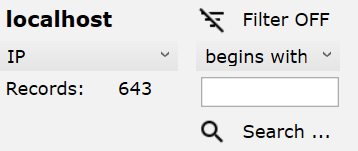
First, determine your current public IP address. You can find it inside the PLUS23.GUARD Domains Panel or alternatively through external services such as browserleaks.com/ip
Error +++C16-8C+++
This block was triggered by scanner or analysis activities. Check the corresponding events within the security report SCANNER and remove the affected IP address from the blocklist if necessary.
Error +++C16-9C+++
This message indicates a bruteforce or login protection block. Check the corresponding events within the security report BRUTEFORCE and remove the affected IP address from the blocklist if required.
Error +++C16-2C+++
This block was triggered by active security or heuristic rules. The corresponding IP address was automatically added to the BLOCKLIST.
NOTICE: The security events log which error code or event triggered the block. Further details can be found within: Security Report::Attacks
Then activate the BLOCKLIST IP filter, search for your IP address and disable the corresponding entry.
CLEAR BROWSER CACHE
After changes to security rules, .htaccess configurations, redirects or website files, it may happen that the browser still uses cached content.
If unusual behavior occurs, clear the browser cache or additionally test the website in private/incognito mode.
UPDATE CLOUDFLARE & CDN CACHE
When using Cloudflare or other CDN systems, security or configuration changes may become visible with delay.
After important changes, clear the CDN cache in order to immediately apply the latest rules and content.
CHECK BROWSER EXTENSIONS
Some browser extensions, VPN plugins or privacy tools modify headers, cookies or network requests.
This may trigger security mechanisms or cause websites to display incorrectly.
After changes to security rules, .htaccess configurations, redirects or website files, it may happen that the browser still uses cached content.
If unusual behavior occurs, clear the browser cache or additionally test the website in private/incognito mode.
UPDATE CLOUDFLARE & CDN CACHE
When using Cloudflare or other CDN systems, security or configuration changes may become visible with delay.
After important changes, clear the CDN cache in order to immediately apply the latest rules and content.
CHECK BROWSER EXTENSIONS
Some browser extensions, VPN plugins or privacy tools modify headers, cookies or network requests.
This may trigger security mechanisms or cause websites to display incorrectly.
VPN AND PROXY USAGE
VPN, TOR or proxy services may automatically be detected or restricted depending on the security configuration.
This helps protect against anonymized attacks, bot networks and suspicious network access.
CHECK SECURITY EVENTS
Not every block automatically means an attack. Legitimate requests, plugins or administration activities can also trigger security rules.
Therefore, regularly review the security logs and adjust configurations specifically if required.
HOSTING RESTRICTIONS
Some hosting providers restrict security features, file access or network requests.
Certain analysis or protection functions may therefore vary depending on hosting environment and server configuration.
VPN, TOR or proxy services may automatically be detected or restricted depending on the security configuration.
This helps protect against anonymized attacks, bot networks and suspicious network access.
CHECK SECURITY EVENTS
Not every block automatically means an attack. Legitimate requests, plugins or administration activities can also trigger security rules.
Therefore, regularly review the security logs and adjust configurations specifically if required.
HOSTING RESTRICTIONS
Some hosting providers restrict security features, file access or network requests.
Certain analysis or protection functions may therefore vary depending on hosting environment and server configuration.
HTTPS & MIXED CONTENT
Make sure that all content on your website is loaded via HTTPS.
Mixed content from HTTP and HTTPS can cause security warnings, browser issues or malfunctioning website features.
CHECK EXTERNAL SCRIPTS AND SERVICES
External scripts, tracking services, fonts or embedded resources should be reviewed regularly.
The fewer external dependencies a website uses, the better control, performance and security evaluation remain.
Make sure that all content on your website is loaded via HTTPS.
Mixed content from HTTP and HTTPS can cause security warnings, browser issues or malfunctioning website features.
CHECK EXTERNAL SCRIPTS AND SERVICES
External scripts, tracking services, fonts or embedded resources should be reviewed regularly.
The fewer external dependencies a website uses, the better control, performance and security evaluation remain.